

MacBook Pro (2018) A1990 Track Pad
We offer professional MacBook Pro (2018) A1990 Track Pad replacement service at iCare Apple in Bangladesh. If your Track Pad is unresponsive, sticky, or malfunctioning, our expert technicians can replace it with high-quality parts, restoring your MacBook’s functionality. Enjoy smooth and precise control with our reliable and fast service.
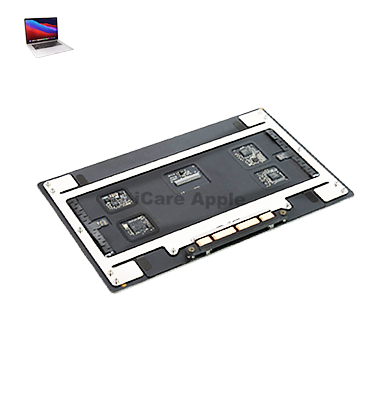
How to Identify When Your MacBook Pro (2018) A1990 Track Pad Needs Replacement
Here are four signs that indicate your MacBook Pro (2018) A1990 Track Pad needs replacement:
Unresponsive or Delayed Input:
The Track Pad does not respond to taps or gestures, or there’s a noticeable delay.
Physical Damage:
Visible cracks, dents, or damage to the Track Pad surface affecting its function.
Sticky or Jumpy Movements:
The cursor moves erratically or gets stuck when using the Track Pad.
Inconsistent Clicks:
The Track Pad fails to register clicks, or the clicking action is inconsistent.
Our MacBook Pro (2018) A1990 Track Pad Replacement Process
1. Diagnosis:
Our technicians assess the Track Pad to identify issues like unresponsiveness or physical damage.
2. Estimate & Approval:
We provide a transparent cost estimate and wait for your approval before proceeding.
3. Track Pad Replacement:
We carefully replace the Track Pad with a high-quality, compatible part to restore functionality.
4. Testing & Quality Check:
After the replacement, we test the Track Pad to ensure it works perfectly and provides a smooth user experience.

Choose iCare Apple for MacBook Pro (2018) A1990 Track Pad replacement because we offer expert service, fast turnaround, and high-quality replacement parts. Our skilled technicians ensure your Track Pad functions like new, providing a smooth, responsive experience. We prioritize customer satisfaction and affordable, reliable repairs tailored to your needs.
✌️Top Benefits of MacBook Pro (2018) A1990 Track Pad Replacement at iCare Apple
Certified Technicians
Our technicians are certified and highly skilled, ensure repairs for your MacBook Pro (2018) A1990. We guarantee top-notch service for all Track Pad replacements.
Original & High-Quality Parts
We use genuine Apple parts for MacBook Track Pad replacements, ensuring optimal performance, durability, and preserving your MacBook's original quality for long-lasting results.
Quick and Efficient Service
At iCare Apple, we prioritize quick and efficient service, minimizing downtime. Our experienced team provides rapid, reliable Track Pad repairs, so you can get back to using your MacBook without delay.

Tips & Tricks for MacBook Pro (2018) A1990 Track Pad
👍 Customize Trackpad Settings:
Explore the Trackpad settings in System Preferences to customize the sensitivity, tracking speed, and gestures according to your preferences and workflow.
👍 Master Multi-Touch Gestures:
Learn and practice common multi-touch gestures such as scrolling, pinch-to-zoom, and swipe gestures to navigate through applications and documents with ease.
👍 Utilize Force Touch:
Take advantage of Force Touch technology by applying different levels of pressure to the trackpad to access contextual menus, preview files, or perform actions such as Look Up.
👍 Enable Tap to Click:
Enable the Tap to Click option in Trackpad settings to perform a click by tapping on the trackpad surface, providing a more ergonomic and efficient alternative to physical clicking.
👍 Explore Three-Finger Gestures:
Experiment with three-finger gestures such as swiping between full-screen apps, Mission Control, and Expose to enhance productivity and multitasking capabilities.
👍 Use Two-Finger Secondary Click:
Enable the Two-Finger Secondary Click option to perform a secondary click (right-click) by tapping with two fingers on the trackpad surface, providing quick access to context menus.
👍 Practice Palm Rejection:
Familiarize yourself with palm rejection technology by ensuring that your palm or wrist does not inadvertently trigger cursor movement or clicks while typing, enhancing accuracy and usability.
👍 Customize Gesture Shortcuts:
Customize gesture shortcuts in Trackpad settings to assign specific actions or commands to custom gestures, allowing for personalized and efficient navigation within macOS and applications.
👍 Adjust Tap Sensitivity:
Fine-tune tap sensitivity in Trackpad settings to optimize responsiveness and accuracy when performing tap gestures such as clicking or selecting items.
👍 Clean the Trackpad Surface:
Regularly clean the trackpad surface with a soft, lint-free cloth to remove dust, fingerprints, and debris, ensuring smooth and precise tracking performance.
By incorporating these tips and tricks into your daily use of the Track Pad on your MacBook Pro (2018) A1990, you can maximize its functionality, efficiency, and user experience.
What Our Customers Are Saying About Our MacBook Pro (2018) A1990 Track Pad Replacement Service
Nubait Haque
The Track Pad replacement at iCare Apple was fast and efficient. My MacBook is working perfectly again!
Shakil Ahmed
Great service! The Track Pad replacement was done quickly, and my MacBook feels like new.
Sumona Islam
I had a fantastic experience with iCare Apple. The Track Pad replacement was seamless and flawless.
Sumaiya Rumu
Excellent service from iCare Apple! My MacBook’s Track Pad was replaced in no time and works perfectly now.
Your Trust is Our Strength
Why Timely MacBook Track Pad Replacement is Essential
Timely MacBook Pro (2018) A1990 Track Pad replacement is essential to ensure smooth functionality and avoid further damage. A malfunctioning Track Pad can affect productivity, slow down tasks, and cause frustration. Early replacement prevents additional wear on internal components and restores the user experience, keeping your MacBook in top condition.
Visit iCare Apple in Dhaka for Professional MacBook Repairs
Located at the heart of Dhaka, iCare Apple offers top-notch repair services for all Macbook models. Our team is committed to providing quality repairs, and we stand by our work. So, if your MacBook Pro (2018) A1990 needs a Track Pad replacement, visit iCare Apple and experience professional service from trusted experts.
Ensure the longevity and performance of your MacBook Pro (2018) A1990 by opting for quality Track Pad replacement services at iCare Apple.
FAQ
1. How can I tell if my MacBook's Track Pad needs replacement?
If the Track Pad is unresponsive, sticky, or physically damaged, it needs replacement.
2. How long does the Track Pad replacement process take?
Typically, it takes few hours to replace the Track Pad.
3. Is there a warranty for the replacement?
Yes, we provide a warranty for all Track Pad replacements.
4. Will the new Track Pad be as responsive as the original?
Yes, the replacement Track Pad will offer the same level of responsiveness and functionality.
5. Do I need to back up my data before the replacement?
No backup is necessary for Track Pad replacement, but it’s always recommended.
6. What is the cost of Track Pad replacement?
Pricing varies depending on the issue; we provide a transparent cost estimate before starting.
7. Do you use original parts for the Track Pad replacement?
Yes, we use high-quality and compatible parts to ensure optimal performance.
8. Can I continue using my MacBook with a damaged Track Pad?
It’s not advisable, as it may cause further issues with your MacBook’s functionality.