

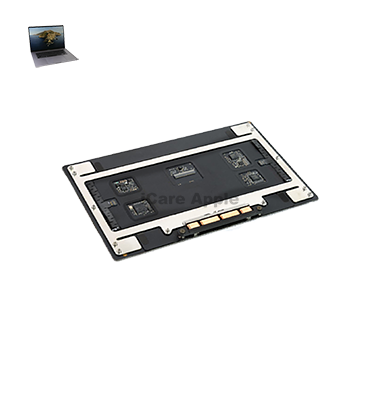
MacBook Pro (2019) A2141 Track Pad
At iCare Apple, we offer professional MacBook Pro (2019) A2141 Track Pad replacement services in Bangladesh. Our experts ensure precise repairs using high-quality parts to restore smooth and responsive Track Pad functionality. Trust us for fast, reliable service with a focus on customer satisfaction and performance.
How to Identify When Your MacBook Pro (2019) A2141 Track Pad Needs Replacement
Here are four signs that your MacBook Pro (2019) A2141 Track Pad may need replacement:
Unresponsive Track Pad
The Track Pad fails to respond to clicks or gestures consistently.
Erratic Pointer Movement
The cursor jumps or moves erratically when using the Track Pad.
Physical Damage
Visible cracks, dents, or wear affecting the Track Pad surface.
Clicking Issues
Difficulty in registering clicks, or the Track Pad feels unresponsive or sticky when pressed.
Our MacBook Pro (2019) A2141 Track Pad Replacement Process
1. Diagnosis
We assess the Track Pad issue to ensure it’s the cause of the problem.
2. Genuine Part Sourcing:
We use high-quality, original Apple parts for replacements.
3. Expert Installation:
Our skilled technicians replace the Track Pad carefully to maintain your MacBook’s functionality.
4. Testing:
After installation, we test the Track Pad to ensure full functionality and smooth performance.

Choose iCare Apple for your MacBook Pro (2019) A2141 Track Pad replacement due to our expert technicians, genuine parts, and fast, reliable service. We ensure your MacBook returns to optimal functionality with precise repairs and excellent customer care, backed by years of experience in Apple product servicing.
✌️Top Benefits of MacBook Pro (2019) A2141 Track Pad Replacement at iCare Apple
Certified Technicians
Our technicians are certified and highly skilled, ensure repairs for your MacBook Pro (2019) A2141. We guarantee top-notch service for all Track Pad replacements.
Original & High-Quality Parts
We use genuine Apple parts for MacBook Track Pad replacements, ensuring optimal performance, durability, and preserving your MacBook's original quality for long-lasting results.
Quick and Efficient Service
At iCare Apple, we prioritize quick and efficient service, minimizing downtime. Our experienced team provides rapid, reliable Track Pad repairs, so you can get back to using your MacBook without delay.

Tips & Tricks for MacBook Pro (2019) A2141 Track Pad
👍 Customize Track Pad Settings:
Explore the Track Pad settings in System Preferences to customize the behavior of the Track Pad according to your preferences. Adjust options such as tracking speed, click pressure, and gesture sensitivity to optimize your user experience.
👍 Master Multitouch Gestures:
Familiarize yourself with multitouch gestures supported by the Track Pad, such as two-finger scrolling, three-finger swipe, and pinch-to-zoom. Mastering these gestures can significantly improve your productivity and navigation efficiency.
👍 Enable Tap-to-Click:
Enable the “Tap to click” option in Track Pad settings to allow for quick and convenient clicking by tapping the Track Pad surface. This eliminates the need to physically press down on the Track Pad to register a click.
👍 Utilize Force Touch:
Take advantage of Force Touch technology by applying varying levels of pressure to the Track Pad surface to trigger additional actions or shortcuts. Experiment with Force Clicks on file icons, website links, or application windows to access contextual menus or Quick Look previews.
👍 Adjust Palm Rejection:
Adjust palm rejection settings to prevent accidental cursor movements or clicks caused by palm contact while typing. Fine-tune palm detection sensitivity to minimize interference and improve typing accuracy.
👍 Learn Track Pad Shortcuts:
Learn built-in Track Pad shortcuts such as three-finger swipe for Mission Control, four-finger swipe for switching between full-screen apps, and three-finger tap for invoking Look Up. These shortcuts can streamline your workflow and boost productivity.
👍 Clean the Track Pad Regularly:
Keep the Track Pad clean by gently wiping it with a soft, lint-free cloth to remove dust, smudges, and debris. Avoid using harsh chemicals or abrasive materials that may damage the Track Pad surface.
👍 Experiment with Haptic Feedback:
Experiment with haptic feedback settings to adjust the tactile response of the Track Pad clicks. Customize the intensity of haptic feedback to your preference for a more tactile and responsive user experience.
👍 Use Track Pad with Accessibility Features:
Explore accessibility features such as Track Pad Commander, which allows you to perform mouse actions using keyboard shortcuts, or Tap to Drag, which enables drag-and-drop functionality without physically dragging items on the Track Pad.
👍 Troubleshoot Track Pad Issues:
If you encounter issues with the Track Pad, such as unresponsiveness or erratic behavior, troubleshoot the problem by resetting Track Pad settings, performing a macOS update, or restarting your MacBook Pro.
If issues persist, seek assistance from Apple Support or visit a service provider like iCare Apple for further diagnosis and repair.
What Our Customers Are Saying About Our MacBook Pro (2019) A2141 Track Pad Replacement Service
Rashed Ahmed
The track pad replacement service at iCare Apple was fast and efficient. My MacBook feels like new again.
Niloy Islam
I had a great experience with iCare Apple for my track pad replacement. Professional service and quick turnaround time.
Jinel Chakma
iCare Apple provided excellent service for my MacBook Pro's track pad replacement. Highly recommended for anyone in need.
Arif Hossain
Thank you, iCare Apple, for the prompt and reliable track pad replacement. The team was professional and skilled.
Your Trust is Our Strength
Why Timely MacBook Track Pad Replacement is Essential
Timely replacement of the MacBook Pro (2019) A2141 track pad is essential to ensure smooth and precise navigation. Delaying the replacement can lead to further damage, affecting productivity and causing frustration. A quick replacement restores functionality, improving the overall user experience and extending the device’s lifespan.
Visit iCare Apple in Dhaka for Professional MacBook Repairs
Located at the heart of Dhaka, iCare Apple offers top-notch repair services for all Macbook models. Our team is committed to providing quality repairs, and we stand by our work. So, if your MacBook Pro (2019) A2141 needs a Track Pad replacement, visit iCare Apple and experience professional service from trusted experts.
Ensure the longevity and performance of your MacBook Pro (2019) A2141 by opting for quality Track Pad replacement services at iCare Apple.
FAQ
1. What signs indicate my MacBook Pro (2019) A2141 Track Pad needs replacement?
Unresponsive or erratic cursor movements, physical damage, or inconsistent clicks are signs.
2. How long does the Track Pad replacement take?
The process typically takes 1-2 hours depending on the service demand.
3. Do I need to book an appointment for a Track Pad replacement?
It’s recommended but not mandatory; walk-ins are also welcome.
4. Is the replacement covered by warranty?
Yes, we offer warranty coverage on parts and services.
5. How much does the Track Pad replacement cost?
Prices vary; contact us for an estimate based on your MacBook model.
6. Can I use my MacBook during the replacement process?
No, the MacBook needs to be left with us until the replacement is complete.
7. What is the quality of the replacement Track Pad?
We use high-quality, genuine parts to ensure optimal performance.
8. Is data loss possible during Track Pad replacement?
Data loss is unlikely, as the replacement only involves hardware components.