
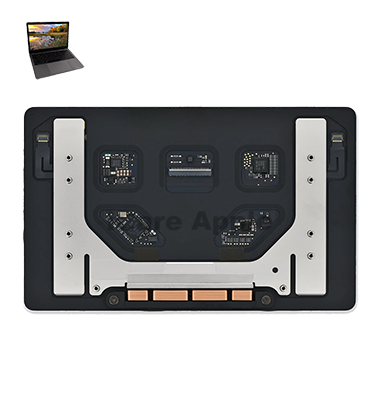

MacBook Pro (2017) A1706 Track Pad
We offer professional MacBook Pro (2017) A1706 Track Pad replacement services in Bangladesh. If your Track Pad is unresponsive, lagging, or physically damaged, our expert technicians ensure a smooth replacement with high-quality parts. Visit us for a fast, reliable, and hassle-free solution to restore your MacBook’s Track Pad functionality.
How to Identify When Your MacBook Pro (2017) A1706 Track Pad Needs Replacement
Here are four signs that your MacBook Pro (2017) A1706 Track Pad may need replacement:
Unresponsive or Lagging Cursor
The Track Pad does not respond smoothly, lags, or freezes frequently.
Physical Damage or Cracks
Visible cracks, dents, or swelling can affect touch sensitivity.
Erratic or Ghost Clicks
The Track Pad registers random clicks or fails to detect taps correctly.
No Haptic Feedback
The Track Pad loses its click sensation or force touch functionality stops working.
Our MacBook Pro (2017) A1706 Track Pad Replacement Process
1. Diagnosis
We thoroughly examine the Track Pad for responsiveness issues, ghost clicks, or physical damage to confirm the need for replacement.
2. Safe Disassembly
Our technicians carefully open the MacBook, disconnecting essential components to access the faulty Track Pad without damaging other parts.
3. Track Pad Replacement
We install a high-quality replacement Track Pad, ensuring proper alignment and secure connection for smooth functionality.
4. Testing & Delivery
After installation, we rigorously test the new Track Pad for accuracy and responsiveness before returning the MacBook to you in perfect working condition.
Choose iCare Apple for MacBook Pro (2017) A1706 Track Pad replacement because we offer expert technicians, high-quality parts, and efficient service. Our thorough diagnostics ensure accurate solutions, and we prioritize customer satisfaction with reliable repairs at competitive prices. Trust us for a smooth and hassle-free Track Pad replacement experience.
✌️Top Benefits of MacBook Pro (2017) A1706 Track Pad Replacement at iCare Apple
Certified Technicians
Our technicians are certified and highly skilled, ensure repairs for your MacBook Pro (2017) A1706. We guarantee top-notch service for all Track Pad replacements.
Original & High-Quality Parts
We use genuine Apple parts for MacBook Track Pad replacements, ensuring optimal performance, durability, and preserving your MacBook's original quality for long-lasting results.
Quick and Efficient Service
At iCare Apple, we prioritize quick and efficient service, minimizing downtime. Our experienced team provides rapid, reliable Track Pad repairs, so you can get back to using your MacBook without delay.
Tips & Tricks for MacBook Pro (2017) A1706 Track Pad
Learn Multi-Touch Gestures:
Familiarize yourself with macOS multi-touch gestures supported by the Track Pad, such as two-finger scrolling, pinch-to-zoom, and three-finger swipe. These gestures enhance navigation and productivity on your MacBook Pro.
Customize Track pad Settings:
Adjust trackpad settings in macOS preferences to customize the behavior and sensitivity of the Track Pad according to your preferences. Explore options for tracking speed, tap to click, and gesture settings to optimize your user experience.
Use Force Touch:
Take advantage of Force Touch technology by applying varying levels of pressure to the Track Pad surface. Experiment with Force Touch gestures to access additional features and shortcuts, such as previewing files or activating Quick Look.
Practice Tap-to-Click:
Use tap-to-click functionality on the Track Pad for a more efficient and ergonomic clicking experience. Enable tap-to-click in trackpad settings to eliminate the need for physical clicks and reduce strain on your fingers.
Enable Secondary Click:
Enable secondary click (also known as right-click) in trackpad settings to access contextual menus and additional options with a two-finger tap or click. Secondary click functionality enhances productivity and efficiency when interacting with macOS.
Master Track pad Shortcuts:
Learn keyboard shortcuts that utilize the Track Pad for enhanced navigation and interaction. For example, use three-finger drag to move windows or objects, or use Mission Control gestures to switch between desktops and applications.
Practice Two-Finger Scrolling:
Use two-finger scrolling to navigate long documents, webpages, and lists with ease. Experiment with natural scrolling direction settings to find the scrolling behavior that feels most intuitive for you.
Utilize Track pad Accessibility Features:
Explore accessibility features in macOS that enhance trackpad usability for users with mobility or dexterity impairments. Enable options such as Tap to Click, Three Finger Drag, or Pointer Control to customize trackpad functionality according to your needs.
Keep Track pad Clean:
Regularly clean the Track Pad surface with a soft, lint-free cloth to remove dirt, oil, and debris that may affect sensitivity or responsiveness. Avoid using abrasive materials or harsh cleaners that could damage the trackpad surface.
Troubleshoot Track pad Issues:
If you encounter problems with the Track Pad, such as unresponsiveness or erratic behavior, perform basic troubleshooting steps such as restarting your MacBook Pro, resetting trackpad settings, or updating macOS to the latest version.
By following these tips and tricks, you can optimize your usage of the Track Pad on your MacBook Pro (2017) A1706 and enjoy a smooth and efficient user experience while navigating macOS and interacting with on-screen content.
What Our Customers Are Saying About Our MacBook Pro (2017) A1706 Track Pad Replacement Service
Abdul Rahim
My MacBook Pro (2017) A1706 Track Pad was unresponsive, but iCare Apple replaced it perfectly. Now it works smoothly like new.
Sonia Afrin
Excellent service from iCare Apple for my faulty Track Pad replacement. The team was professional, and the repair was completed quickly.
Sumaiya Nowshin
iCare Apple did an amazing job replacing my MacBook Track Pad. The response and touch sensitivity are flawless now. Highly recommended.
Jahid Hasan
My Track Pad had ghost clicks, and iCare Apple fixed it efficiently. The replacement process was smooth, and the service was top-notch.
Your Trust is Our Strength
Why Timely MacBook Track Pad Replacement is Essential
Timely MacBook Pro (2017) A1706 Track Pad replacement is essential to maintain smooth navigation and productivity. A faulty Track Pad can cause unresponsive clicks, erratic movements, and disrupt your workflow. Delaying repairs may lead to further internal issues. Replacing it promptly ensures seamless functionality, improving your overall MacBook experience and efficiency.
Visit iCare Apple in Dhaka for Professional MacBook Repairs
Located at the heart of Dhaka, iCare Apple offers top-notch repair services for all MacBook models. Our team is committed to providing quality repairs, and we stand by our work. So, if your MacBook Pro (2017) A1706 needs a Track Pad replacement, visit iCare Apple and experience professional service from trusted experts.
Ensure the longevity and performance of your MacBook Pro (2017) A1706 by opting for quality Track Pad replacement services at iCare Apple.
FAQ
1. When should I replace my MacBook Pro (2017) A1706 Track Pad?
If it’s unresponsive, lags, has ghost clicks, or shows physical damage, replacement is needed.
2. How long does the Track Pad replacement take?
The replacement process usually takes a few hours, depending on workload and part availability.
3. Do you use original Track Pads for replacement?
We use high-quality replacement parts to ensure smooth functionality and durability.
4. Will my data be affected during Track Pad replacement?
No, Track Pad replacement does not impact your data, but we recommend a backup for safety.
5. How much does a MacBook Pro (2017) A1706 Track Pad replacement cost?
The cost depends on part availability; contact us for the latest pricing.
6. Do you provide a warranty on the replacement Track Pad?
Yes, we offer a limited warranty on the replaced Track Pad; terms apply.
7. Can I get same-day Track Pad replacement service?
Yes, if the part is available, we provide same-day service.
8. What causes a MacBook Pro (2017) A1706 trackpad to stop working?
Physical damage, moisture exposure, internal component failure, or software issues can cause it to malfunction.
