

MacBook Pro (2017) A1707 Track Pad
At iCare Apple in Bangladesh, we specialize in MacBook Pro (2017) A1707 Track Pad replacement. Our skilled technicians diagnose Track Pad issues and replace them with high-quality parts, ensuring smooth and responsive functionality. Trust us for fast, reliable service to restore your MacBook’s Track Pad to perfect working condition.
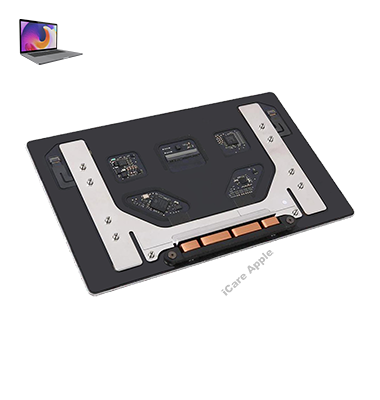
How to Identify When Your MacBook Pro (2017) A1707 Track Pad Needs Replacement
Here are four signs that indicate your MacBook Pro (2017) A1707 Track Pad may need replacement:
Unresponsiveness:
If the Track Pad stops responding to touch or click gestures, even after troubleshooting, it could be faulty.
Erratic Movement:
If the cursor jumps around or lags while using the Track Pad, it might need replacement.
Physical Damage:
Visible cracks, dents, or other physical damage to the Track Pad indicate the need for replacement.
Frequent Disconnects:
If the Track Pad intermittently stops working or disconnects, it may have a hardware issue that requires replacement.
Our MacBook Pro (2017) A1707 Track Pad Replacement Process
1. Diagnosis:
We perform a detailed assessment of the Track Pad to identify the issue, such as unresponsiveness or erratic movement.
2. Cost Estimate:
After diagnosing the problem, we provide a transparent cost estimate for the Track Pad replacement.
3. Replacement:
Our skilled technicians replace the damaged Track Pad with a high-quality, compatible part, ensuring smooth functionality.
4. Final Testing:
Once the replacement is complete, we rigorously test the Track Pad to ensure it functions flawlessly before returning your MacBook.

Choose iCare Apple for your MacBook Pro (2017) A1707 Track Pad replacement for our expert technicians, high-quality parts, and reliable service. We ensure precise diagnostics, fast repairs, and smooth functionality, restoring your Track Pad to perfect working condition. Trust us to deliver top-notch service and excellent customer satisfaction.
✌️Top Benefits of MacBook Pro (2017) A1707 Track Pad Replacement at iCare Apple
Certified Technicians
Our technicians are certified and highly skilled, ensure repairs for your MacBook Pro (2017) A1707 . We guarantee top-notch service for all Track Pad replacements.
Original & High-Quality Parts
We use genuine Apple parts for MacBook Track Pad replacements, ensuring optimal performance, durability, and preserving your MacBook's original quality for long-lasting results.
Quick and Efficient Service
At iCare Apple, we prioritize quick and efficient service, minimizing downtime. Our experienced team provides rapid, reliable Track Pad repairs, so you can get back to using your MacBook without delay.

Tips & Tricks for MacBook Pro (2017) A1707 Track Pad
👍 Learn multi-touch gestures:
Familiarize yourself with macOS’s built-in multi-touch gestures, such as swiping between desktops, pinch-to-zoom, and three-finger swipe to navigate between full-screen apps. These gestures can greatly enhance productivity and streamline navigation.
👍 Customize Track Pad settings:
Explore the Track Pad preferences in System Preferences to customize Track Pad behavior to your liking. Adjust settings such as tracking speed, click pressure sensitivity, and gesture recognition to suit your preferences and workflow.
👍 Use Force Click:
Take advantage of the Force Click feature by pressing firmly on the Track Pad surface to perform additional actions or access context-sensitive menus. Experiment with Force Click in applications like Safari, Finder, and Preview to discover its functionality.
👍 Enable tap to click:
Enable the “Tap to click” option in Track Pad preferences to perform clicks by tapping on the Track Pad surface, eliminating the need to physically press down. This can reduce strain on your fingers and provide a more comfortable clicking experience.
👍 Practice two-finger scrolling:
Master two-finger scrolling by using a two-finger swipe gesture to scroll vertically and horizontally through documents, web pages, and other content. Adjust scrolling direction settings to match your preference for natural or traditional scrolling.
👍 Utilize three-finger gestures:
Experiment with three-finger gestures, such as swiping up to reveal Mission Control, swiping left or right to switch between full-screen apps, and swiping down to reveal the desktop. These gestures offer efficient ways to navigate and manage multiple tasks.
👍 Customize app-specific gestures:
Some applications offer unique multi-touch gestures or Force Touch interactions for specific actions. Check application preferences or documentation to learn about any custom gestures or shortcuts available.
👍 Practice palm rejection:
Practice proper hand positioning to minimize unintentional input from your palms while typing. Position your hands comfortably on the keyboard and avoid resting your palms on the Track Pad surface to prevent accidental cursor movements or clicks.
👍 Keep the Track Pad clean:
Keep the Track Pad clean by gently wiping the surface with a soft, lint-free cloth to remove dust, fingerprints, and other debris. Avoid using harsh chemicals or abrasive materials that could damage the Track Pad surface.
👍 Troubleshoot Track Pad issues:
If you encounter issues with the Track Pad, such as erratic behavior or unresponsiveness, try restarting your MacBook Pro and resetting the System Management Controller (SMC). If problems persist, consult Apple Support or authorized service providers for further assistance.
By incorporating these tips and tricks into your daily use of the Track Pad on your MacBook Pro (2017) A1707, you can maximize productivity, efficiency, and comfort while navigating macOS and interacting with applications.
What Our Customers Are Saying About Our MacBook Pro (2017) A1707 Track Pad Replacement Service
Rifat Chowdhury
The Track Pad replacement at iCare Apple was quick and efficient. My MacBook feels like new again with smooth, responsive touch!
Nusrat Jahan
I’m extremely happy with the Track Pad repair service. iCare Apple provided excellent service, and my MacBook is working perfectly now.
Tareq Hossain
iCare Apple fixed my MacBook Track Pad in no time. The new Track Pad works flawlessly, and I’m very satisfied with the service!
Shama Sultana
The Track Pad replacement process at iCare Apple was seamless. My MacBook’s touchpad is now fully functional, and I couldn’t be happier!
Your Trust is Our Strength
Why Timely MacBook Track Pad Replacement is Essential
Timely MacBook Pro (2017) A1707 Track Pad replacement is essential to restore smooth and accurate navigation. Delaying the replacement can lead to more complicated issues, such as reduced productivity or difficulty using your MacBook. Prompt service ensures your Track Pad functions perfectly, keeping your workflow uninterrupted and your device in optimal condition.
Visit iCare Apple in Dhaka for Professional MacBook Repairs
Located at the heart of Dhaka, iCare Apple offers top-notch repair services for all MacBook models. Our team is committed to providing quality repairs, and we stand by our work. So, if your MacBook Pro (2017) A1707 needs a Track Pad replacement, visit iCare Apple and experience professional service from trusted experts.
Ensure the longevity and performance of your MacBook Pro (2017) A1707 by opting for quality Track Pad replacement services at iCare Apple.
FAQ
1. How long does it take to replace the MacBook Pro (2017) A1707 Track Pad?
The replacement typically takes 2-3 business days.
2. Will my data be lost during the Track Pad replacement?
No, the Track Pad replacement does not affect your data.
3. Do you use original parts for Track Pad replacement?
Yes, we use high-quality, compatible parts for all Track Pad replacements.
4. How much does the Track Pad replacement cost for MacBook Pro (2017) A1707?
The cost varies based on diagnosis; we provide a detailed estimate after checking the device.
5. Is there a warranty for the Track Pad replacement?
Yes, we offer a warranty on both parts and labor for Track Pad replacements.
6. Can I get a cost estimate before proceeding with the replacement?
Yes, we offer a detailed estimate after diagnosing the issue.
7. How do I schedule a Track Pad replacement service?
You can book a service by calling or visiting our store.
8. Will my MacBook still be covered under Apple warranty after the replacement?
We are not authorized service provider, so Apple warranty may not apply.