
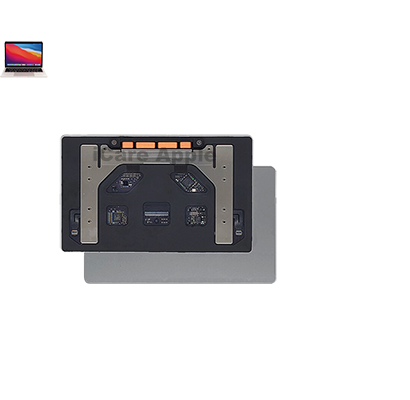

MacBook Pro (2018) A1989 Track Pad
At iCare Apple in Bangladesh, we offer expert MacBook Pro (2018) A1989 Track Pad replacement services. If your Track Pad is unresponsive or malfunctioning, our skilled technicians will replace it with high-quality parts, restoring your MacBook’s performance. Trust us for fast, reliable service and a smooth, hassle-free experience.
How to Identify When Your MacBook Pro (2018) A1989 Track Pad Needs Replacement
Here are four signs that your MacBook Pro (2018) A1989 Track Pad may need replacement:
Unresponsive or Erratic Behavior:
If the Track Pad stops responding to touch or behaves erratically, it may need replacement.
Physical Damage:
Visible cracks, dents, or other physical damages on the Track Pad surface can affect its functionality.
Clicking Issues:
If the Track Pad fails to click or feels unusually stiff, it may be malfunctioning.
Lag or Delay:
A noticeable delay in cursor movement or lag in response could signal that the Track Pad is faulty and needs replacement.
Our MacBook Pro (2018) A1989 Track Pad Replacement Process
1. Diagnosis:
We begin by diagnosing the issue with your Track Pad to confirm the need for replacement.
2. Quote:
A transparent cost estimate is provided, including parts and service charges.
3. Replacement:
Our skilled technicians replace the faulty Track Pad with a high-quality, genuine part.
4. Testing:
After replacement, we rigorously test the Track Pad to ensure smooth functionality and responsiveness.
Choose iCare Apple for MacBook Pro (2018) A1989 Track Pad replacement because we use high-quality, genuine parts and offer expert, efficient service. Our skilled technicians ensure your Track Pad functions perfectly again, providing fast, reliable repairs with customer satisfaction guaranteed. Trust us for top-notch service at competitive prices.
✌️Top Benefits of MacBook Pro (2018) A1989 Track Pad Replacement at iCare Apple
Certified Technicians
Our technicians are certified and highly skilled, ensure repairs for yourMacBook Pro (2018) A1989. We guarantee top-notch service for all Track Pad replacements.
Original & High-Quality Parts
We use genuine Apple parts for MacBook Track Pad replacements, ensuring optimal performance, durability, and preserving your MacBook's original quality for long-lasting results.
Quick and Efficient Service
At iCare Apple, we prioritize quick and efficient service, minimizing downtime. Our experienced team provides rapid, reliable Track Pad repairs, so you can get back to using your MacBook without delay.
Tips & Tricks for MacBook Pro (2018) A1989 Track Pad
Customize Track pad Settings:
Explore the Track pad settings in System Preferences to customize the tracking speed, click pressure, and gesture preferences according to your preference and comfort level.
Master Multi-Touch Gestures:
Familiarize yourself with multi-touch gestures such as two-finger scrolling, pinch-to-zoom, and three-finger swipes for efficient navigation and multitasking on your MacBook Pro.
Enable Tap to Click:
Enable the “Tap to Click” option in Trackpad settings to perform clicks by tapping the Track Pad surface, eliminating the need to physically press down on the trackpad for every click action.
Use Force Touch Features:
Take advantage of Force Touch technology by applying varying levels of pressure on the Track Pad to access context-sensitive actions, preview links, and accelerate cursor movement with the Force Click feature.
Practice Palm Rejection:
Practice maintaining proper hand posture to prevent accidental palm or wrist touches from interfering with cursor movement or unintended actions on the Track Pad.
Experiment with Accessibility Options:
Explore accessibility features in System Preferences to adjust Track Pad sensitivity, enable inertial scrolling, or configure alternative input methods for users with specific needs or preferences.
Clean the Track Pad Regularly:
Keep the Track Pad surface clean and free from dust, dirt, or fingerprints by gently wiping it with a soft, lint-free cloth to ensure smooth and accurate tracking performance.
Reset SMC and PRAM:
If you encounter issues with the Track Pad, try resetting the System Management Controller (SMC) and Parameter RAM (PRAM) to troubleshoot and restore default settings that may resolve software-related issues.
Update macOS Regularly:
Keep your MacBook Pro’s operating system up to date with the latest macOS updates to ensure compatibility with the Track Pad drivers, receive bug fixes, and benefit from performance improvements and new features.
Seek Professional Assistance:
If you experience persistent issues with the Track Pad despite troubleshooting efforts, consider contacting Apple Support or visiting an authorized service provider for diagnosis and repair of potential hardware defects or malfunctions.
By following these tips and tricks, you can enhance your productivity and user experience with the Track Pad on the MacBook Pro (2018) A1989, enjoying smoother navigation, precise control, and convenient access to advanced features and gestures.
What Our Customers Are Saying About OurMacBook Pro (2018) A1989 Track Pad Replacement Service
Sajia Islam
My MacBook track pad was unresponsive, and iCare Apple fixed it perfectly. The service was fast, and now it works like new.
Esha Noor
I had issues with my track pad, and iCare Apple provided a smooth replacement. Professional service and great customer support.
Umme Habiba
The track pad replacement was quick and efficient. iCare Apple ensured my MacBook was back to normal in no time.
Sabit Hasan
My MacBook track pad was glitchy, but iCare Apple replaced it flawlessly. Highly satisfied with their expert service.
Your Trust is Our Strength
Why Timely MacBook Track Pad Replacement is Essential
Timely replacement of your MacBook Pro (2018) A1989 Track Pad is essential to maintain smooth performance and productivity. Delayed repairs can lead to more severe damage, affecting your workflow. A malfunctioning Track Pad can also hinder tasks, making it important to address issues promptly to prevent further complications and expenses.
Visit iCare Apple in Dhaka for Professional MacBook Repairs
Located at the heart of Dhaka, iCare Apple offers top-notch repair services for all MacBook models. Our team is committed to providing quality repairs, and we stand by our work. So, if your MacBook Pro (2018) A1989 needs a Track Pad replacement, visit iCare Apple and experience professional service from trusted experts.
Ensure the longevity and performance of your MacBook Pro (2018) A1989 by opting for quality Track Pad replacement services at iCare Apple.
FAQ
1. How long does it take to replace the Track Pad?
The replacement typically takes a few hours, depending on the complexity.
2. Do you use original parts for Track Pad replacement?
Yes, we use high-quality, genuine parts for all replacements.
3. How can I schedule an appointment for Track Pad replacement?
You can call, email, or visit our store to schedule your appointment.
4. What is the cost for Track Pad replacement?
The cost varies; we provide a detailed quote after inspecting your MacBook.
5. Is the Track Pad replacement covered under warranty?
Yes, we offer a warranty for our Track Pad replacement services.
6. Can I replace just the Track Pad without replacing other components?
Yes, we only replace the Track Pad without affecting other components.
7. Do I need to back up my data before the replacement?
It’s recommended, though not required, to back up your data before servicing.
8. When should I replace my MacBook Pro (2018) A1989 trackpad?
If it’s unresponsive, lagging, or physically damaged, replacement is needed.
