

MacBook Pro (2015) A1398 Track Pad
At iCare Apple, we offer professional MacBook Pro (2015) A1398 Track Pad replacement services in Bangladesh. Our skilled technicians provide quick and reliable repairs, ensuring your Track Pad works smoothly. We use high-quality parts to restore your device’s functionality, offering a seamless experience with minimal downtime.
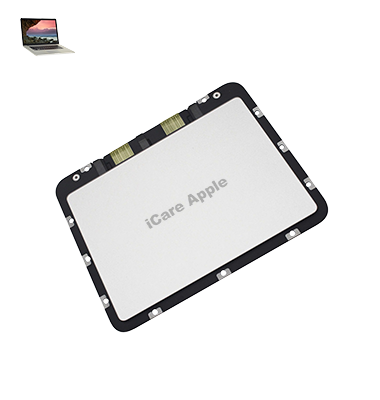
How to Identify When Your MacBook Pro (2015) A1398 Track Pad Needs Replacement
Here are four signs that your MacBook Pro (2015) A1398 Track Pad may need replacement:
Unresponsive or Sticky Track Pad:
If the Track Pad is unresponsive or sticky, making it difficult to click or navigate.
Erratic Cursor Movement:
The cursor may jump around randomly or fail to follow your finger’s movement.
Physical Damage:
Cracks, dents, or any visible damage on the Track Pad surface can affect its functionality.
Double-Clicking Issues:
If the Track Pad registers multiple clicks or doesn’t respond to a single press, it might need replacement.
Our MacBook Pro (2015) A1398 Track Pad Replacement Process
1. Diagnosis:
Our technicians begin by thoroughly diagnosing the Track Pad to confirm the need for replacement.
2. Parts Sourcing:
We source high-quality, compatible parts to ensure long-lasting performance after the replacement.
3. Track Pad Replacement:
The faulty Track Pad is carefully removed, and the new Track Pad is installed by our skilled technicians.
4. Testing:
We thoroughly test the new Track Pad to ensure it functions smoothly, providing you with a seamless user experience before returning your MacBook.

Choose iCare Apple for your MacBook Pro (2015) A1398 Track Pad replacement because of our expert technicians, high-quality replacement parts, and efficient service. We ensure a smooth and responsive Track Pad experience, offering reliable repairs with minimal downtime and customer satisfaction as our top priority.
✌️Top Benefits of MacBook Pro (2015) A1398 Track Pad Replacement at iCare Apple
Certified Technicians
Our technicians are certified and highly skilled, ensure repairs for your MacBook Pro (2015) A1398. We guarantee top-notch service for all Track Pad replacements.
Original & High-Quality Parts
We use genuine Apple parts for MacBook Track Pad replacements, ensuring optimal performance, durability, and preserving your MacBook's original quality for long-lasting results.
Quick and Efficient Service
At iCare Apple, we prioritize quick and efficient service, minimizing downtime. Our experienced team provides rapid, reliable Track Pad repairs, so you can get back to using your MacBook without delay.

Tips & Tricks for MacBook Pro (2015) A1398 Track Pad
👍 Master Multi-Touch Gestures:
Learn and utilize a variety of multi-touch gestures to navigate your MacBook Pro efficiently. Gestures like swiping between desktops, pinch-to-zoom, and three-finger swipes for Mission Control can streamline your workflow.
👍 Customize Trackpad Settings:
Explore the Trackpad settings in System Preferences to customize the behavior of your Track Pad. Adjust settings such as tracking speed, scrolling direction, and gesture preferences to suit your preferences.
👍 Enable Tap to Click:
Enable the “Tap to Click” option in Trackpad settings to perform clicks by tapping the Track Pad instead of physically pressing down. This can reduce strain on your fingers during prolonged use.
👍 Learn Force Touch:
Familiarize yourself with Force Touch, a feature that allows you to perform additional actions by applying pressure to the Track Pad. Experiment with Force Clicks to preview links, access Quick Look, or enable additional context menus.
👍 Use Three-Finger Drag:
Enable the three-finger drag gesture in Trackpad settings to move windows and select text more efficiently. This gesture allows you to drag windows or highlight text without needing to click and drag.
👍 Practice Palm Rejection:
Practice proper palm rejection techniques to avoid accidental input while typing. The Track Pad of your MacBook Pro is designed to ignore incidental touches from your palm while you’re typing, but it’s helpful to maintain good typing posture to minimize distractions.
👍 Clean the Track Pad Regularly:
Keep your Track Pad clean and free of dirt, oil, and debris by wiping it gently with a soft, lint-free cloth. Regular cleaning can prevent issues such as sticky or unresponsive surfaces.
👍 Adjust Sensitivity Settings:
Fine-tune the sensitivity settings of your Track Pad to your liking. Experiment with different tracking speeds and gesture sensitivity levels in Trackpad settings to find the settings that work best for you.
👍 Utilize Accessibility Features:
Explore the accessibility features available for the Track Pad in System Preferences. Features such as Tap Assistance, which helps with precision tapping, or Mouse Keys, which allow you to control the cursor with keyboard keys, can enhance usability.
👍 Stay Updated:
Keep your MacBook Pro’s software up to date with the latest macOS updates and patches. Updates may include improvements to Track Pad performance, stability, and compatibility with other software and hardware.
By incorporating these tips and tricks into your daily use of the Track Pad on your MacBook Pro (2015) A1398, you can maximize its functionality and efficiency.
What Our Customers Are Saying About Our MacBook Pro (2015) A1398 Track Pad Replacement Service
Rafida Zaman
The Track Pad replacement at iCare Apple was quick and efficient. My MacBook is working like new again!
Hasnat Morshed
I’m impressed with the service and quality at iCare Apple. The Track Pad replacement was flawless and fast.
Zubair Rahman
iCare Apple provided excellent service for my Track Pad replacement. The process was smooth and my MacBook feels great!
Shereen Tasnim
Very happy with the Track Pad replacement service at iCare Apple. The team was professional, and my MacBook is perfect now!
Your Trust is Our Strength
Why Timely MacBook Track Pad Replacement is Essential
Timely MacBook Pro (2015) A1398 Track Pad replacement is essential to maintain smooth functionality. A malfunctioning Track Pad can disrupt productivity, cause frustration, and lead to further internal damage. Prompt replacement ensures optimal performance, preventing more costly repairs and extending the lifespan of your device for a better user experience.
Visit iCare Apple in Dhaka for Professional MacBook Repairs
Located at the heart of Dhaka, iCare Apple offers top-notch repair services for all MacBook models. Our team is committed to providing quality repairs, and we stand by our work. So, if your MacBook Pro (2015) A1398 needs a Track Pad replacement, visit iCare Apple and experience professional service from trusted experts.
Ensure the longevity and performance of your MacBook Pro (2015) A1398 by opting for quality Track Pad replacement services at iCare Apple.
FAQ
1. How much does the Track Pad replacement cost?
The cost varies based on the MacBook’s condition; please contact us for a detailed quote.
2. Will my MacBook work better after the Track Pad replacement?
Yes, a new Track Pad will restore smooth functionality and improve your overall experience.
3. Do you use original Apple parts for Track Pad replacement?
Yes, We use high-quality, compatible parts to ensure optimal performance and durability.
4. Can I still use my MacBook without a functioning Track Pad?
You can use an external mouse, but replacing the Track Pad is recommended for optimal functionality.
5. What if my Track Pad is water-damaged?
We can assess the extent of the water damage and replace the Track Pad if necessary.
6. How can I ensure my new Track Pad lasts longer?
Avoid liquid exposure, excessive force, and dust accumulation to extend the lifespan of your new Track Pad.
7. What should I do if I can’t bring my MacBook in person for Track Pad replacement?
You can send your MacBook to us via courier and we’ll handle the replacement.
8. How can I prevent Track Pad issues in the future?
Regular cleaning, avoiding liquid spills, and gentle use can prevent Track Pad malfunctions in the future.