

MacBook Pro (2015) A1502 Track Pad
At iCare Apple, we provide expert MacBook Pro (2015) A1502 Track Pad replacement services in Dhaka. Our skilled technicians use original parts for fast, reliable repairs. With same-day service, affordable pricing, and a one-year warranty, we ensure your MacBook’s Track Pad works like new, enhancing your user experience.
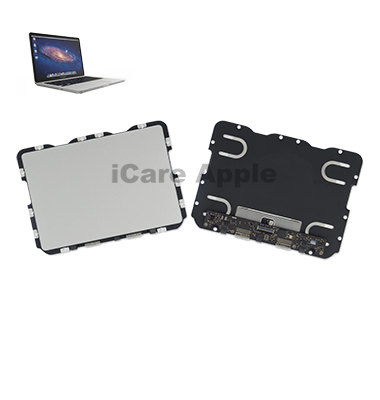
How to Identify When Your MacBook Pro (2015) A1502 Track Pad Needs Replacement
Here are four signs that your MacBook Pro (2015) A1502 Track Pad may need replacement:
Unresponsive or Inconsistent Tracking:
The Track Pad doesn’t register clicks or movements consistently, affecting usability.
Physical Damage:
Visible cracks, dents, or other physical damages can compromise the Track Pad’s performance.
Erratic Cursor Movement:
The cursor jumps or moves randomly, indicating a malfunction in the Track Pad.
Unusual Sensitivity:
The Track Pad becomes too sensitive or doesn’t respond to light touches, making it difficult to control.
Our MacBook Pro (2015) A1502 Track Pad Replacement Process
1. Diagnosis:
Our expert technicians assess your Track Pad to confirm the issue.
2. Quote & Approval:
We provide a transparent, affordable quote and wait for your approval.
3. Replacement:
We replace the faulty Track Pad with original parts to ensure quality.
4. Testing & Delivery:
The Track Pad is thoroughly tested, and we offer a one-year warranty on the service. Enjoy fast, same-day service to get your MacBook back in top condition.

Choose iCare Apple for your MacBook Pro (2015) A1502 Track Pad replacement due to our expert technicians, use of original parts, and fast, same-day service. We offer a one-year warranty, affordable pricing, and reliable service, ensuring your Track Pad functions like new for an enhanced MacBook experience.
✌️Top Benefits of MacBook Pro (2015) A1502 Track Pad Replacement at iCare Apple
Certified Technicians
Our technicians are certified and highly skilled, ensure repairs for your MacBook Pro (2015) A1502. We guarantee top-notch service for all Track Pad replacements.
Original & High-Quality Parts
We use genuine Apple parts for MacBook Track Pad replacements, ensuring optimal performance, durability, and preserving your MacBook's original quality for long-lasting results.
Quick and Efficient Service
At iCare Apple, we prioritize quick and efficient service, minimizing downtime. Our experienced team provides rapid, reliable Track Pad repairs, so you can get back to using your MacBook without delay.

Tips & Tricks for MacBook Pro (2015) A1502 Track Pad
👍 Customize Trackpad Settings:
Explore the Trackpad settings in System Preferences to customize the behavior and sensitivity of your Track Pad. Adjust settings such as tracking speed, scrolling direction, and gesture preferences to match your preferences.
👍 Master Multi-Touch Gestures:
Take advantage of multi-touch gestures to navigate and interact with your MacBook Pro more efficiently. Learn common gestures such as two-finger scrolling, pinch-to-zoom, and three-finger swiping to streamline your workflow.
👍 Use Force Touch:
If your MacBook Pro (2015) A1502 is equipped with Force Touch technology, experiment with Force Click gestures for additional functionality. Force Clicking on certain elements, such as links or file icons, provides context-sensitive actions and previews.
👍 Enable Tap to Click:
Enable the “Tap to Click” option in Trackpad settings to allow tapping on the Track Pad surface to register clicks, eliminating the need to physically press down on the Track Pad. This can reduce strain on your fingers and improve overall comfort.
👍 Practice Palm Rejection:
Practice proper palm rejection techniques to prevent unintended cursor movements while typing. Rest your palms lightly on the palm rests or use software settings to adjust palm rejection sensitivity and minimize interference with typing.
👍 Experiment with Three-Finger Drag:
Explore the “Three-Finger Drag” gesture, which allows you to drag and drop items on the screen using three fingers instead of physically clicking and dragging. Enable this feature in Trackpad settings for a more efficient workflow.
👍 Utilize Mission Control:
Use the “Swipe up with three fingers” gesture to activate Mission Control, a feature that provides a bird’s-eye view of all open windows, desktop spaces, and applications. Navigate and organize your workspace effortlessly using Mission Control.
👍 Customize Secondary Click:
Customize the secondary click (right-click) behavior of your Track Pad to suit your preferences. Choose between “Click in bottom right corner” or “Click in bottom left corner” options in Trackpad settings for easy access to contextual menus.
👍 Avoid Surface Obstructions:
Keep the Track Pad surface clean and free of obstructions to ensure accurate tracking and gesture recognition. Regularly wipe the Track Pad with a soft, lint-free cloth and avoid placing objects or accessories on the Track Pad surface.
👍 Troubleshoot Unresponsive Behavior:
If you encounter unresponsive behavior or erratic cursor movement, try resetting the Track Pad settings, restarting your MacBook Pro, or updating macOS to the latest version. Troubleshooting software-related issues can often resolve Track Pad problems.
By incorporating these tips and tricks into your daily usage, you can maximize the efficiency, comfort, and functionality of the Track Pad on your MacBook Pro (2015) A1502.
What Our Customers Are Saying About Our MacBook Pro (2015) A1502 Track Pad Replacement Service
Adnan Ahsan
The Track Pad replacement at iCare Apple was quick and efficient. I’m very satisfied with the service.
Mahbub Alam
Great experience with iCare Apple for my MacBook’s Track Pad replacement. They used original parts, and everything works perfectly.
Hossain Shah
iCare Apple replaced my MacBook Track Pad in no time. Excellent service and great customer care!
Munna Raaj
I had my Track Pad replaced here, and the service was fast and reliable. Highly recommend iCare Apple for MacBook repairs.
Your Trust is Our Strength
Why Timely MacBook Track Pad Replacement is Essential
Timely MacBook Pro (2015) A1502 Track Pad replacement is essential to maintain smooth functionality. Delayed repairs can lead to further damage, affecting performance and usability. Addressing issues early ensures efficient work, prevents frustration, and prolongs your device’s lifespan, keeping your MacBook in optimal working condition for longer.
Visit iCare Apple in Dhaka for Professional MacBook Repairs
Located at the heart of Dhaka, iCare Apple offers top-notch repair services for all MacBook models. Our team is committed to providing quality repairs, and we stand by our work. So, if your MacBook Pro (2015) A1502 needs a Track Pad replacement, visit iCare Apple and experience professional service from trusted experts.
Ensure the longevity and performance of your MacBook Pro (2015) A1502 by opting for quality Track Pad replacement services at iCare Apple.
FAQ
1. Do you use original parts for the replacement?
Yes, we use original parts for all replacements.
2. Is the replacement covered by warranty?
Yes, we offer a limited warranty on the replacement.
3. Can I get my Track Pad repaired instead of replaced?
Depending on the condition, we may offer repairs, but replacement is usually more effective.
4. How much does the Track Pad replacement cost?
The cost varies depending on the issue; please contact us for a quote.
5. Is there any risk of data loss during the trackpad replacement?
No, there is no risk of data loss during trackpad replacement.
6. How do I know if my Track Pad needs replacing?
If your Track Pad is unresponsive, erratic, or damaged, it may need a replacement.
7. Can you replace my Track Pad while I wait?
Yes, we offer same-day service, so you can wait while we replace it.
8. What if my Track Pad issue is due to a software problem?
We will diagnose the issue and provide software troubleshooting if necessary before replacement.